
VAULT User Guide
Vault Crypto Hardware Wallet by THREE CATS

WELCOME
Welcome to all our clients that have just received their new VAULT cryptocurrency hardware wallet.
Please review this user guide to assist you with customising your VAULT to ensure you have the highest levels of security and usability.
SUPPORT NOTICE
We fully configure your VAULT ready to use and provide support via this User Guide, Help Guides, FAQs page and access to the Graphene OS Forum where you can ask questions to learn more about Graphene OS.
VAULT EXTREME
WHAT DID YOU BUY
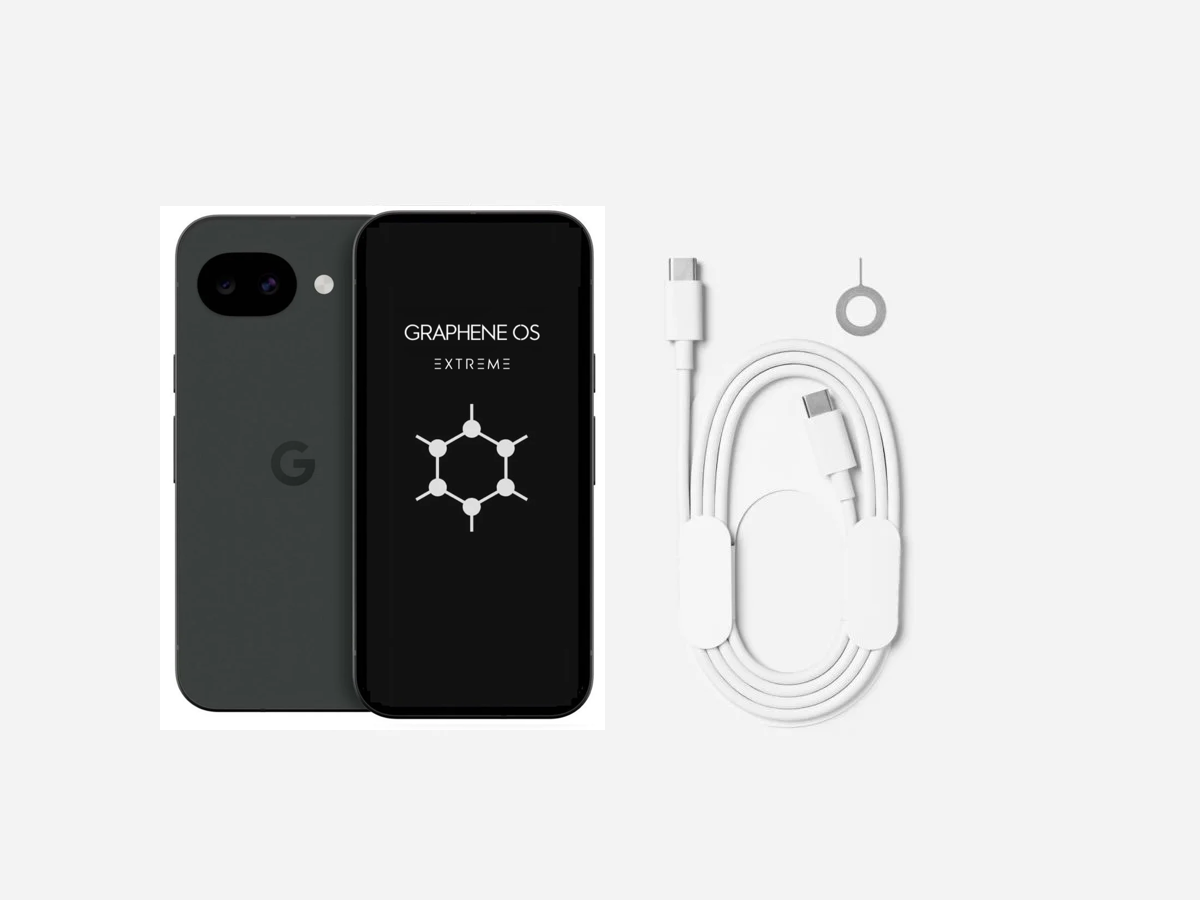
You just bought a brand new Pixel 10a with our custom Graphene OS Extreme ✚ Vault Intrusion Configuration yielding the most secure hardware wallet available.
Your VAULT also includes regular automatic security OS updates that download when your VAULT is online, ensuring your VAULT is always up-to-date.
FIRST THINGS FIRST
INTERNET ACCESS
As a crypto wallet, we would typically use it, then fully shut down to take it "off-line" which places it in it’s most secure state.
We would also typically not use a SIM card, but rather use your home wifi, or daily phone hotspot when an internet connection is needed to send / receive.
FIRST THINGS FIRST
FIRST BOOT UP
1] Power up your VAULT and ignore the notice that your VAULT is running an alternate OS.
2] Swipe up, enter your password previously provided, and tap the keyboard tick to proceed.
Passwords…
YOUR PASSWORD
PASSWORD SECURITY
FOR YOUR INFORMATION
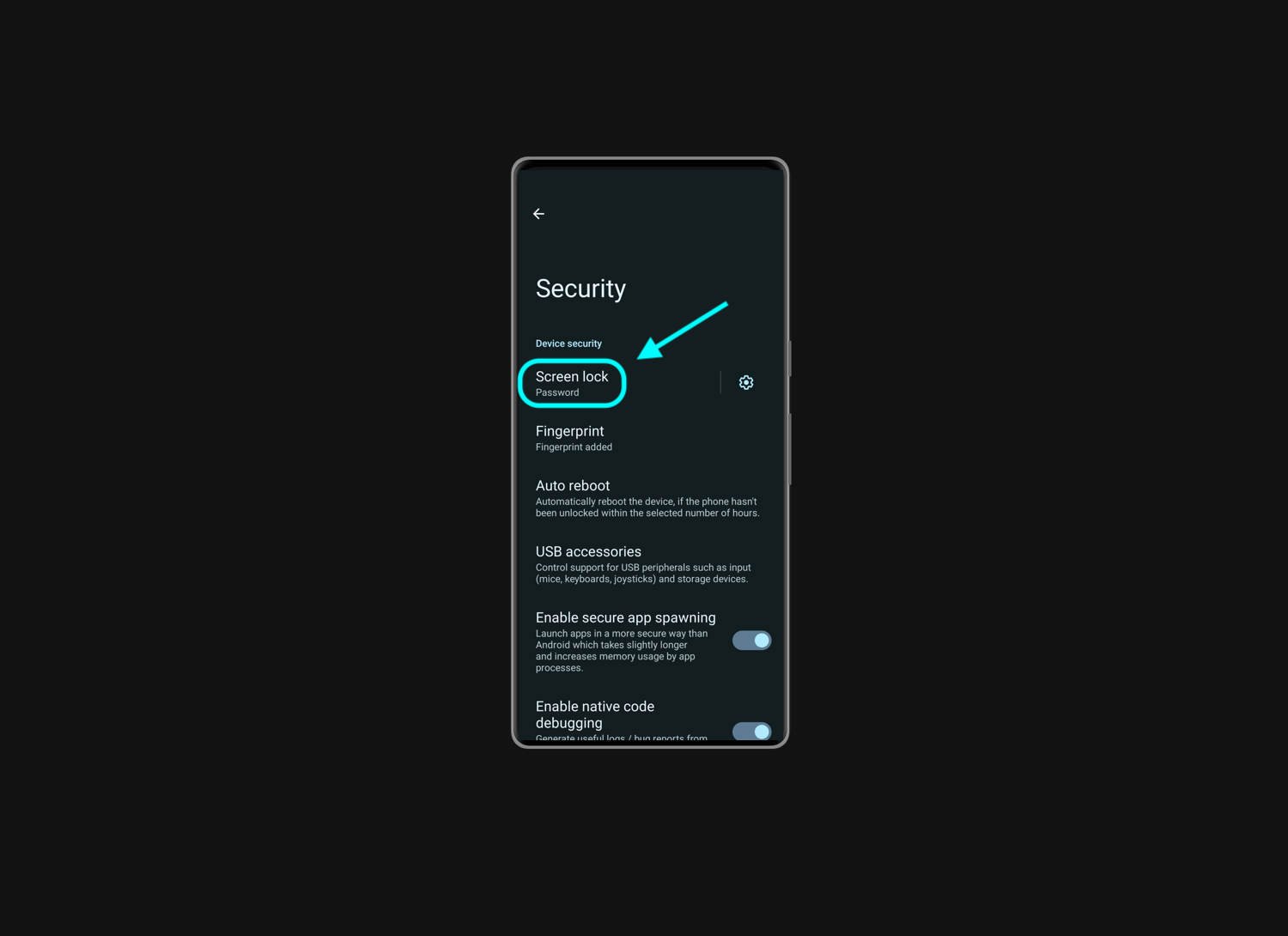
We configure your VAULT with a Password Sentence as longer passwords using letters, numbers and special characters are far more secure than a single password or PIN. You can also set a Fingerprint ✚ PIN secondary unlock for increased security.
YOUR PASSWORD
CHANGE YOUR PASSWORD
HIGHLY RECOMMENDED
Now change the password that is used to turn on your VAULT. Use a Password Sentence like: Good*Luck*Hacking*My*Vault*In*2026
1] Make a secure record of your password
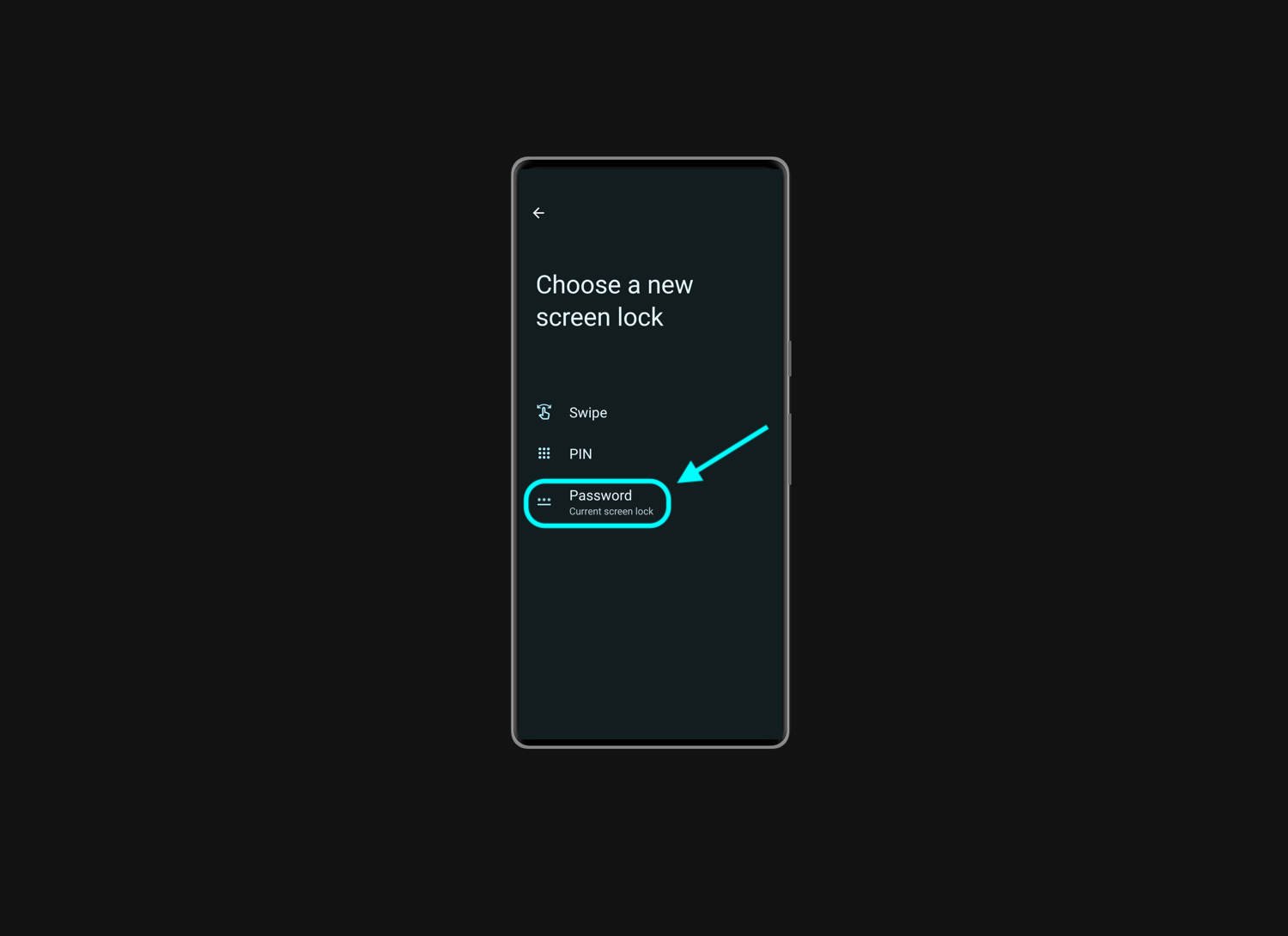
2] Settings ➤ Security & Privacy ➤ Device Unlock ➤ Screen Lock Password.
3] Enter your current password
YOUR PASSWORD
PART TWO
HIGHLY RECOMMENDED
Now to enter your new password:
4] Tap on the text 'Password'
5] Enter new password and then tap 'Next'
6] Re-enter new password and then tap 'Confirm'
7] Written your password down?

WARNING
LOST PASSWORD
Do you understand if you lose your password you can NOT access your VAULT without it?
Please ensure you have a plan to remember or recover your password or ensure you know your crypto passwords, so you can rebuild your VAULT.
FINGERPRINT ✚ PIN
ADDITIONAL SECURITY
OPTIONAL SETTING
For additional security, you can set a Fingerprint ✚ PIN secondary unlock.
Your Password Sentence unlocks your VAULT when first turned on. For quick access while using VAULT you can use your Fingerprint ✚ PIN.
After use, fully shutdown your VAULT, and use the Password Sentence the next time you turn your VAULT on.
FINGERPRINT ✚ PIN
HOW TO CONFIGURE
OPTIONAL SETTING
To set your Fingerprint ✚ PIN:
1] Open Settings ➤ Security & Privacy ➤ Device Unlock ➤ Fingerprint
2] Enter your Password
3] Add your Fingerprint
4] Delete TEMP Fingerprint
5] Scroll down, Tap 'Second Factor PIN'
6] Enter PIN and Confirm PIN
Security…
WIFI OFF
ENHANCED SECURITY
BEST PRACTICE
To use your VAULT, you will typically connect to your home WiFi or daily phone hotspot. It is a good security practice to turn your VAULT WiFi to OFF once you are finished sending / receiving crypto.
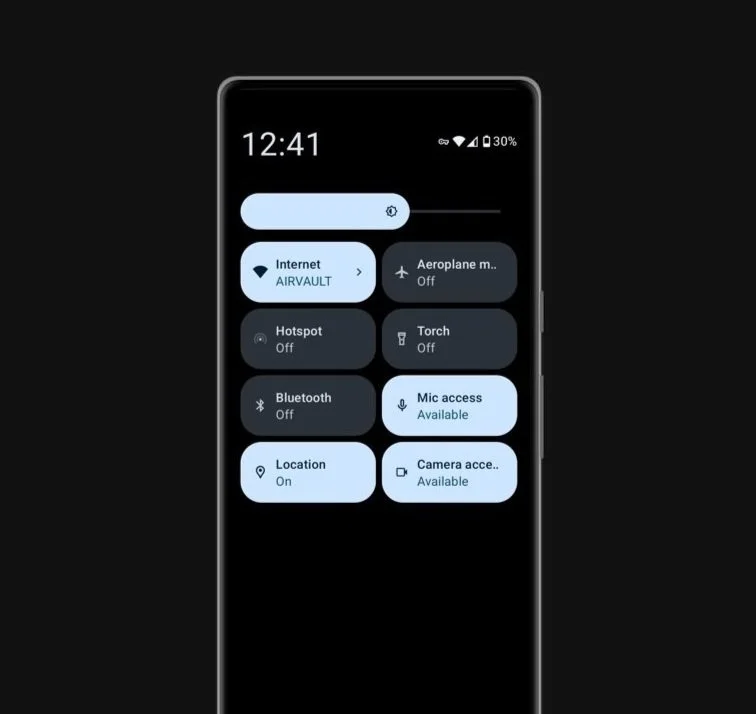
KILL SWITCHES
ENHANCED SECURITY
BEST PRACTICE
VAULT includes Quick Access Kill Switches so you can easily shut off the WiFI, bluetooth, microphone, camera, GPS and many other features, at the touch of a switch and is recommended to leave these off when not required.

VAULT SHUTDOWN
ENHANCED SECURITY
BEST PRACTICE
To use your VAULT, you will typically connect to your home WiFi or daily phone hotspot.
Once you are finished all your transactions, fully shut down VAULT. This returns VAULT to its most secure, full encrypted state, and also saves the battery.

BLUETOOTH AUTO OFF
ENHANCED SECURITY
FOR YOUR INFORMATION
VAULT is extremely secure, however all Bluetooth is know as a target point for hacking. For enhanced security we set Bluetooth to Auto Off after 10 minutes if there is no actively connected device.
There should be no need to change this setting and is simply for your awareness.
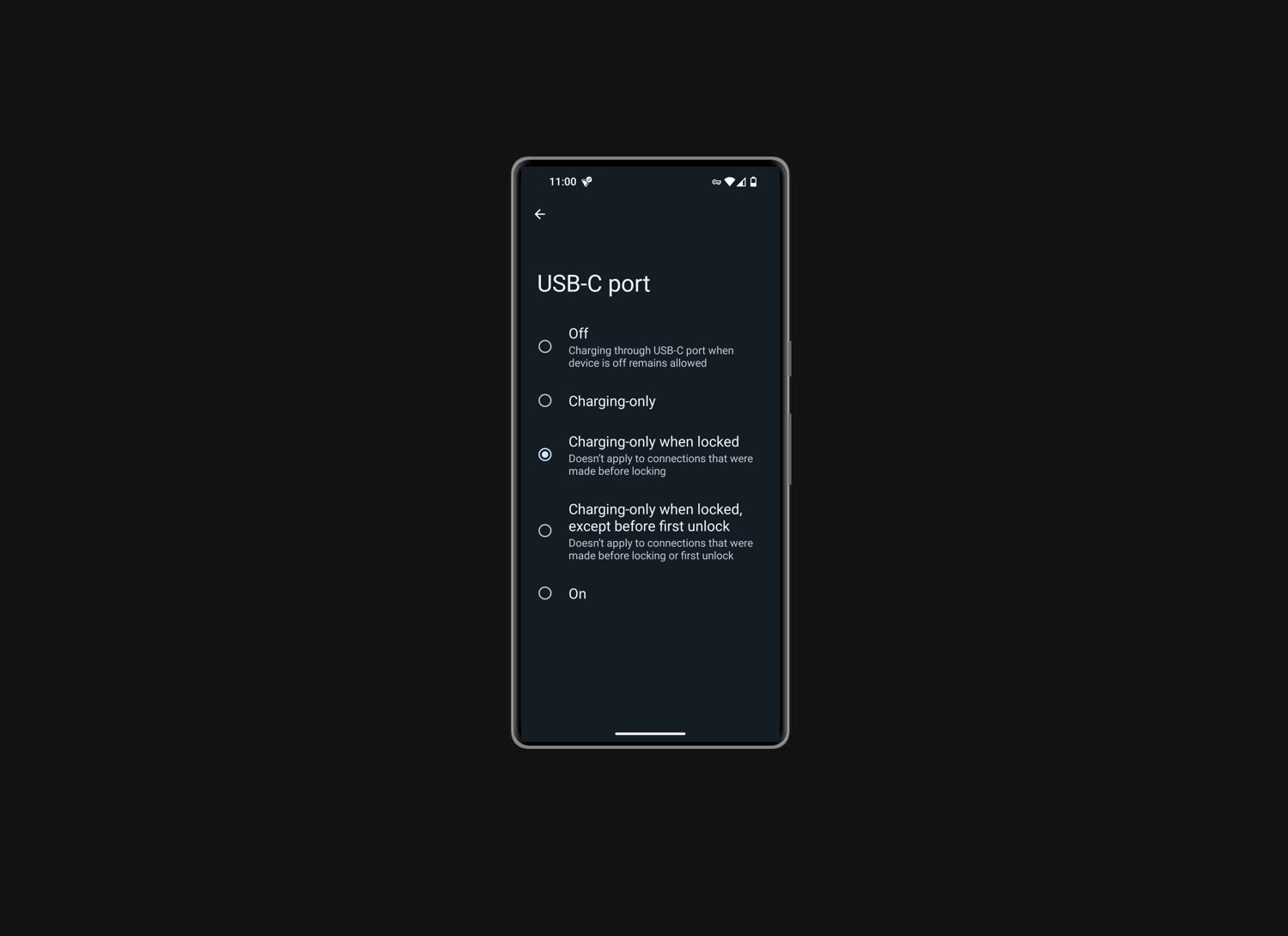
USB-C SECURITY
ENHANCED SECURITY
FOR YOUR INFORMATION
VAULT is delivered with USB-C Security set to "Charging Only When Locked". This ensures the least attack surface exposure.
There should be no need to change this setting and is simply for your awareness.

VAULT REBOOT
ENHANCED SECURITY
FOR YOUR INFORMATION
VAULT is delivered with the auto reboot security set to 1 hour by default. Auto Reboot will restart your phone if you have not used it within this time period. This restart requires your password sentence to decrypt the phone and allow access.
There should be no need to change this setting and is simply for your awareness.
VERIFIED SECURITY
ENHANCED SECURITY
FOR YOUR INFORMATION
Your new VAULT employs Verified Boot which allows you to verify that your VAULT has not been tampered with.
Restart VAULT and compare the displayed Verified Boot Number matches the code below to confirm VAULT has not been compromised. CODE: d8f879d10419eddc9fcda6280718be763f6bf12299e1f72df3ea8ad8a8eb7f80
Apps…
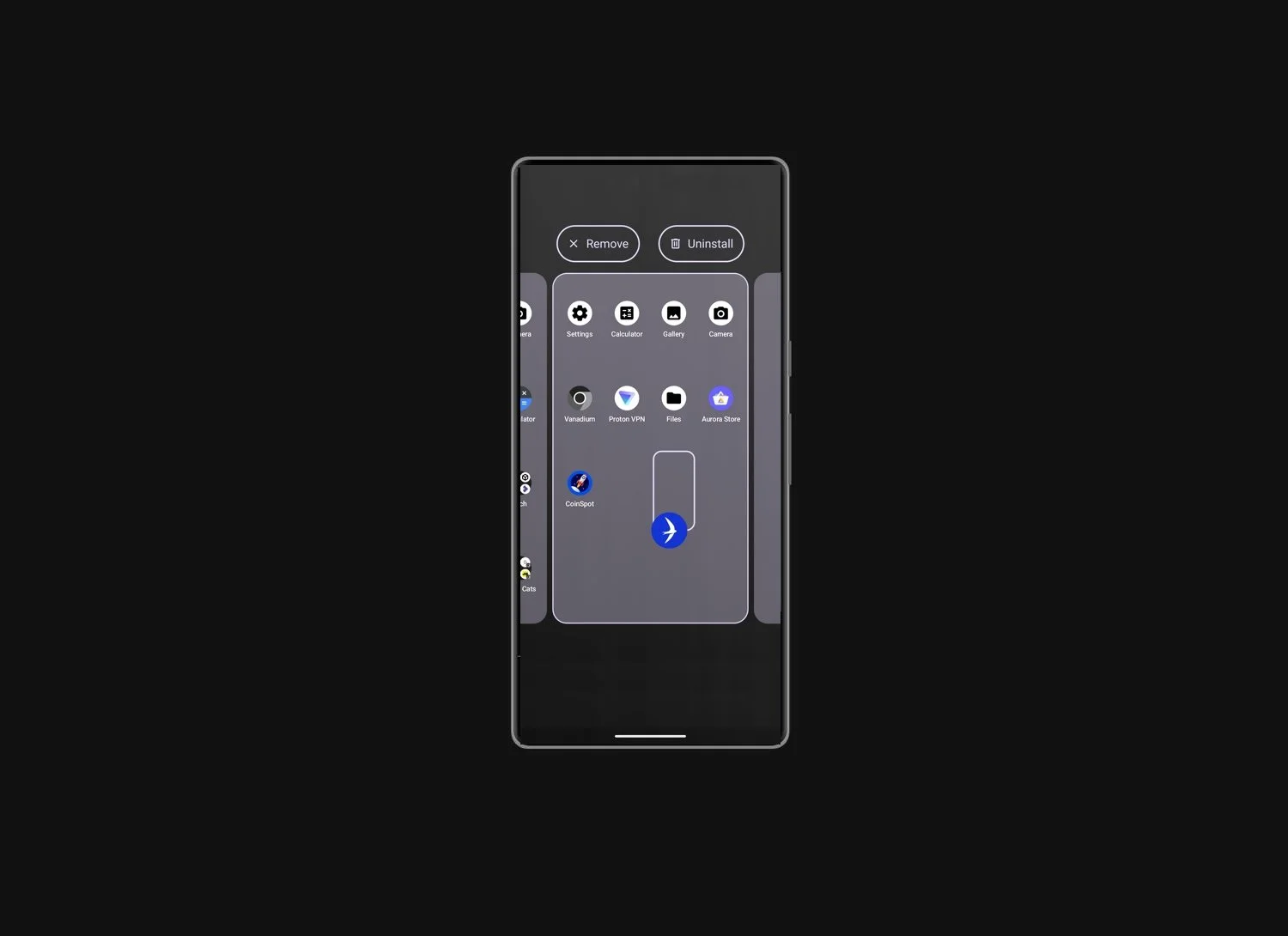
MOVING APP ICONS
➤ MOVE
Touch, Hold, Drag to new position
➤ FOLDER
Touch, Hold, Drag app onto other app
➤ FOLDER NAME
Open folder, tap name to edit
➤ REMOVE
Touch, Hold, Drag onto 'Remove'
➤ UNINSTALL
Touch, Hold, Drag onto 'Uninstall'

VANADIUM BROWSER
HIGHLY RECOMMENDED
Vanadium Browser is included with VAULT and is extremely private and secure. It is based on the popular Chromium Browser so is highly compatible with most websites, and is strongly recommended should you need to browse on your VAULT.
FREE PROTON VPN
WHEN TO USE
BEST PRACTICE
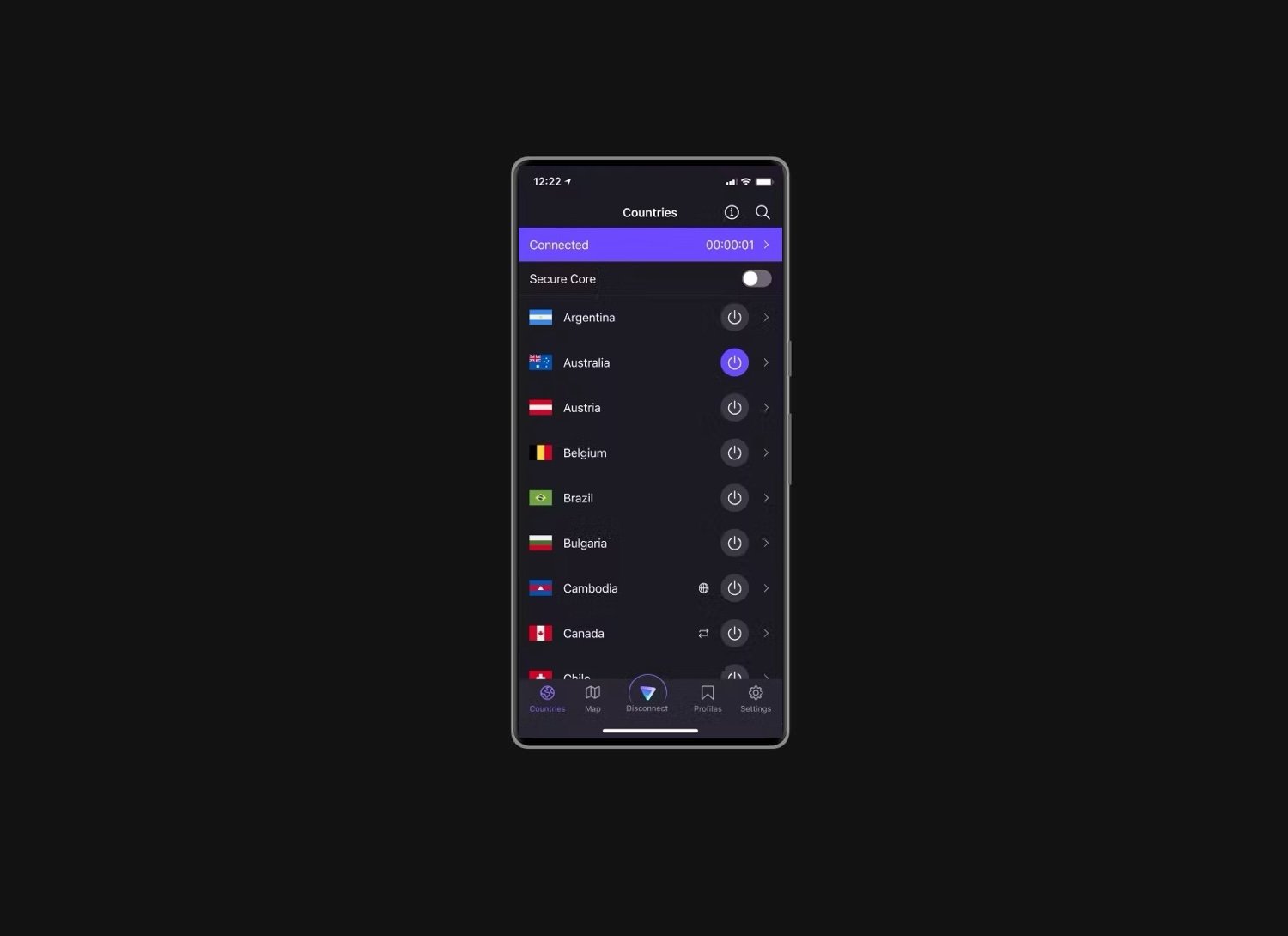
You don’t need to use a VPN if you are using your VAULT on your home WiFi [that you trust] or hot-spotting off your daily phone. If you are desperate and need to use a public WiFi you should use a VPN for extreme security and privacy. Additionally, using a VPN stops your internet provider from seeing you use crypto apps.
Proton VPN have free and paid options, and we have installed this app on VAULT.
CRYPTO APPS
AURORA STORE
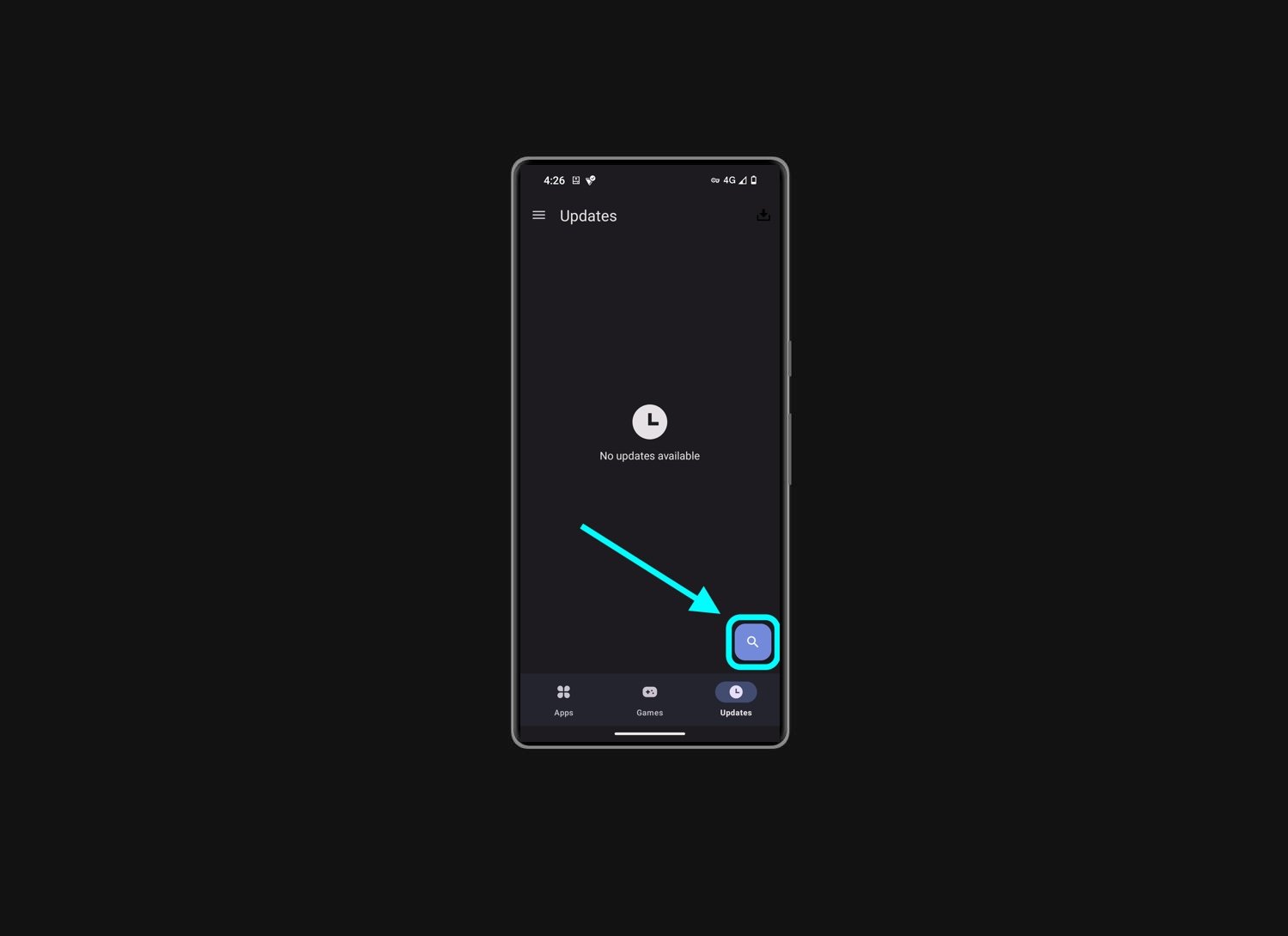
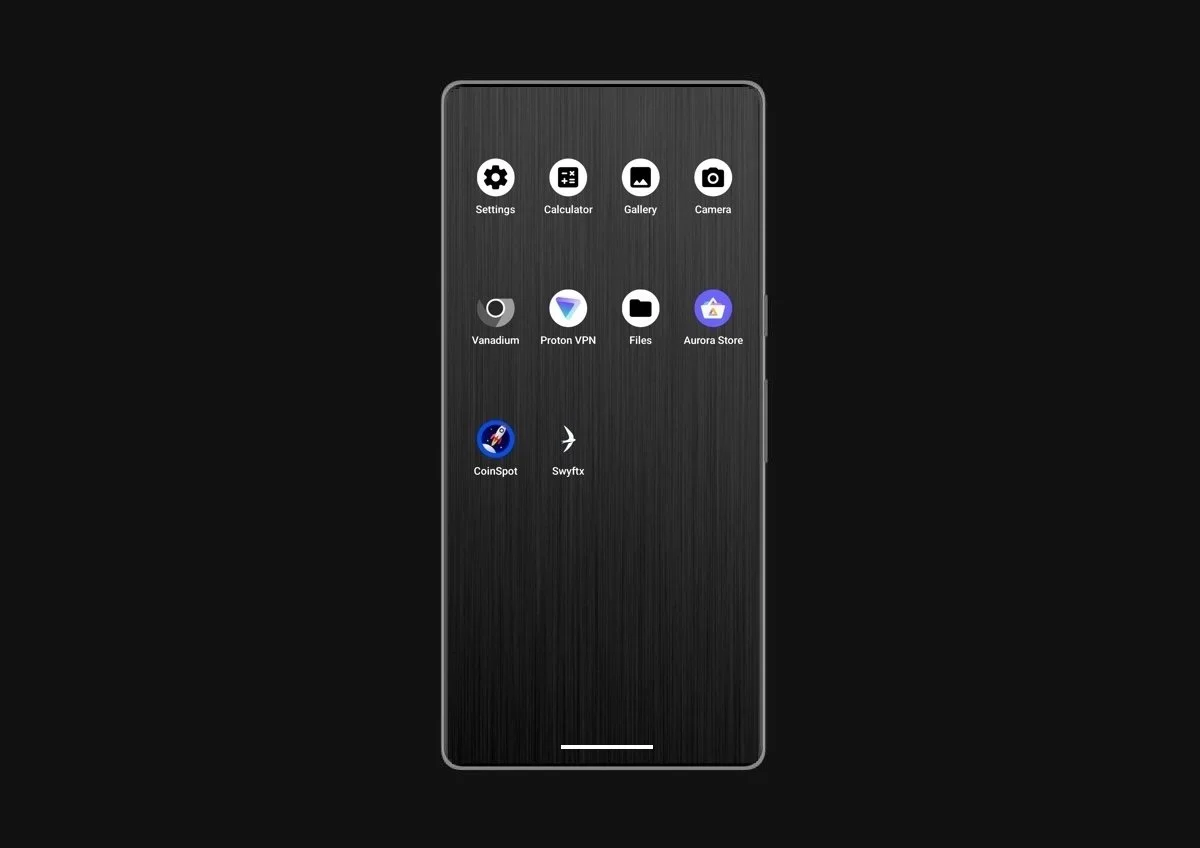
To add your preferred crypto app to VAULT open the anonymous Aurora Store app.
Tap on the 'magnify glass' icon in the bottom right, type your app name to search for it, select your app, and tap to install it. Your app will download, and may display an 'Install Confirmation' button… tap to confirm and then wait as some apps can take upto 60 seconds to install.
AURORA STORE LOGIN
LOGGED OUT
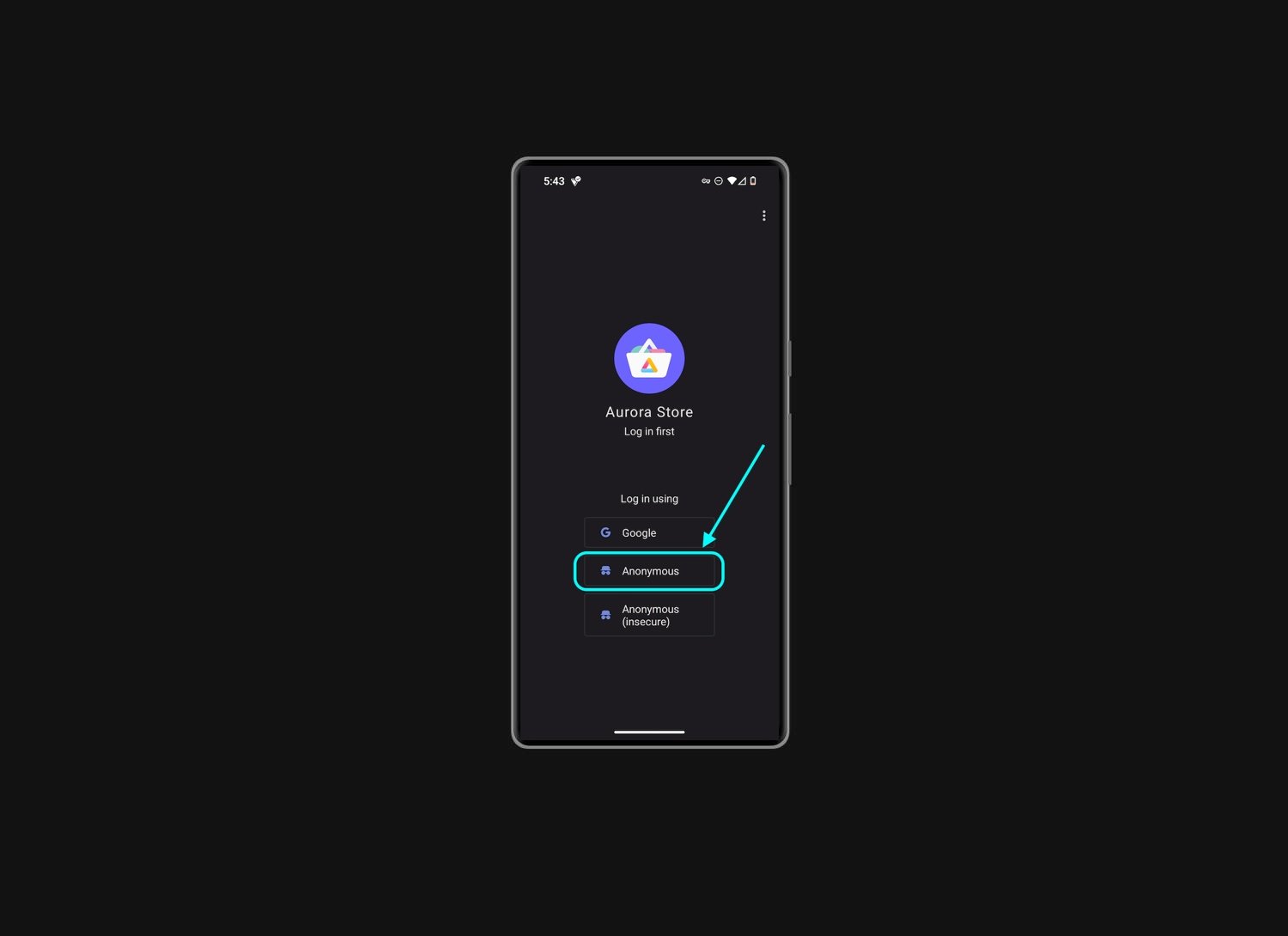
If you find yourself logged out of the Aurora Store for some reason, tap on the anonymous login which can happen as it is a free service with millions of users, simply close the app or reboot VAULT, and try again. Also ensure you have good internet as this is usually the problem.
APP WONT OPEN
TROUBLE SHOOTING
Your VAULT has Extreme Security configured. In limited cases, some apps may not be compatible with these extreme security settings, and when opened will display a notice and then close. If this occurs with your app, follow our guide to adjust the settings for that one app.
APP UPDATES
STAY UP-TO-DATE
BEST PRACTICE
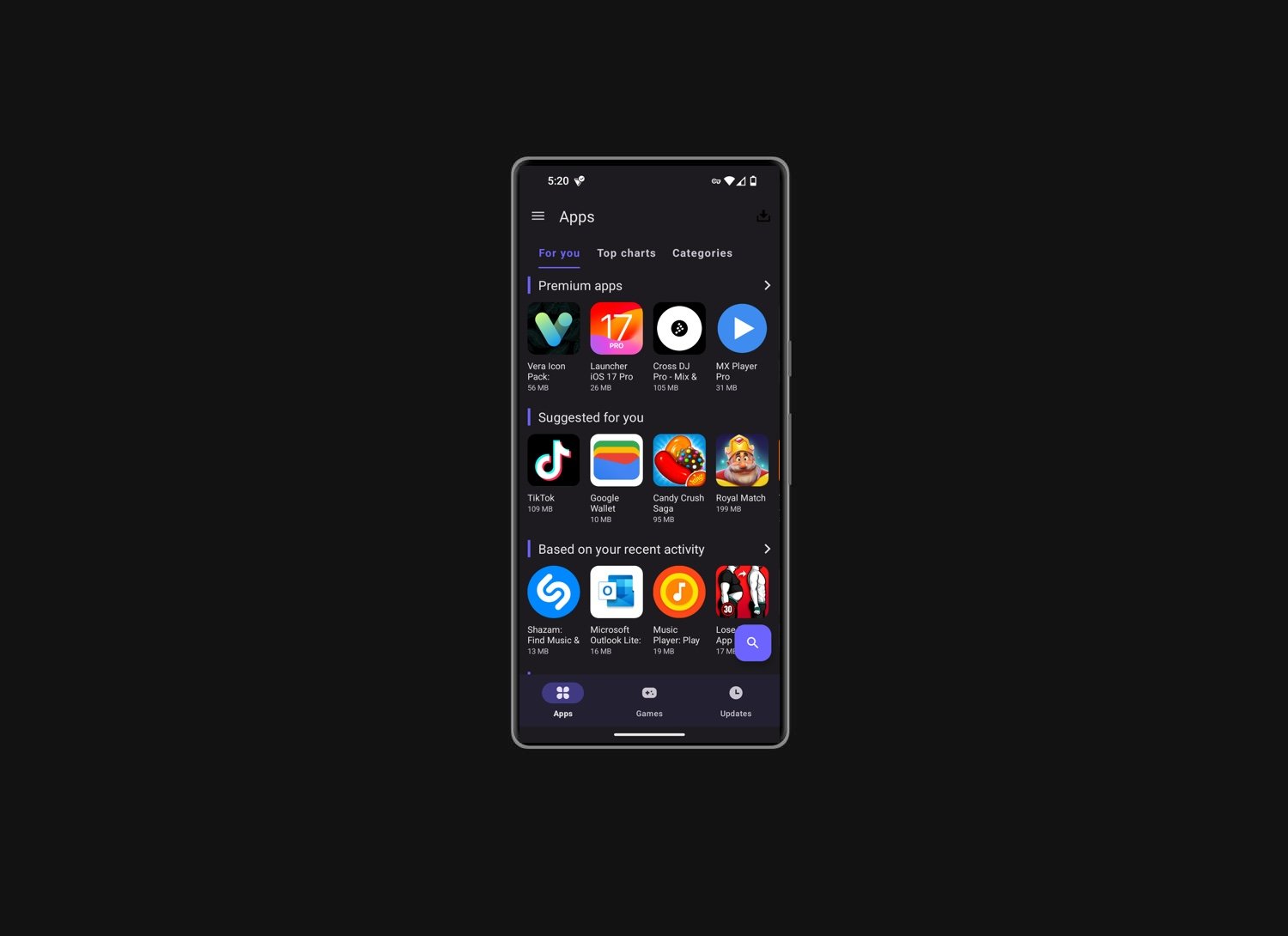
It’s good practice to keep your apps updated which can provide new features and patch security issues. Just open the Aurora Store app each week or two and tap 'update' next to any apps that have a pending update, then tap install if it asks you to, after it downloads the new update.
ANTI-VIRUS APPS
NEVER INSTALL
We highly discourage installing any anti-virus or anti-malware apps on your VAULT as it is far more advanced than these apps, and they will just cause problems!

GOOGLE PLAY STORE
NEVER LOGIN
Just an important reminder we do not login to the Google Play Store on our VAULT. Your VAULT has all the Google spyware removed, however we install the Play Store in a secure sandbox that can not spy on you, but runs in the background as some apps require it to be there.
Support…
PROBLEMS CHARGING or STARTING VAULT
TROUBLE SHOOTING
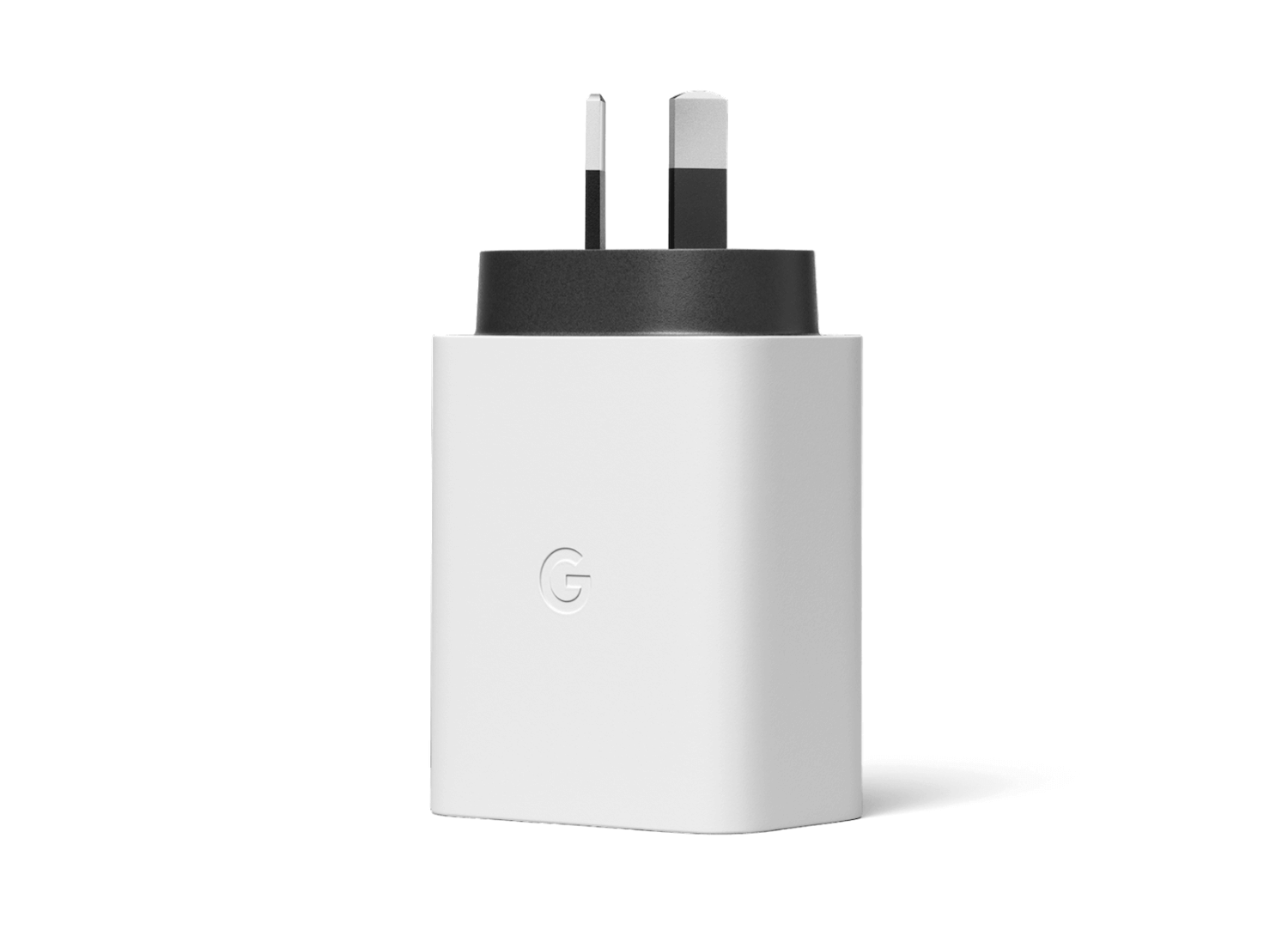
VAULT requires a 30 Watt charger. Charging from an old low watts output charger, or from your laptop USB socket will cause charging issues.
Once your VAULT battery is discharged, you can have trouble turning it back on. It is best to ensure it is fully shutdown / off and then charge over night. Follow this link below for details.
YOUR WIFI ROUTER
WIFI CONNECTION ISSUES
TROUBLE SHOOTING
If you are having connection issues on your home wifi router with your VAULT, your WiFi router may have restricted the number of devices that can connect. Graphene OS has an advanced privacy spoofing feature that you can adjust. Follow the link below to learn more.
SUPPORT NOTICE
LOOKING FOR MORE HELP
We provide support via:
➤ Our VAULT User Guide
➤ Our VAULT FAQs page
➤ Our Guides via the menu
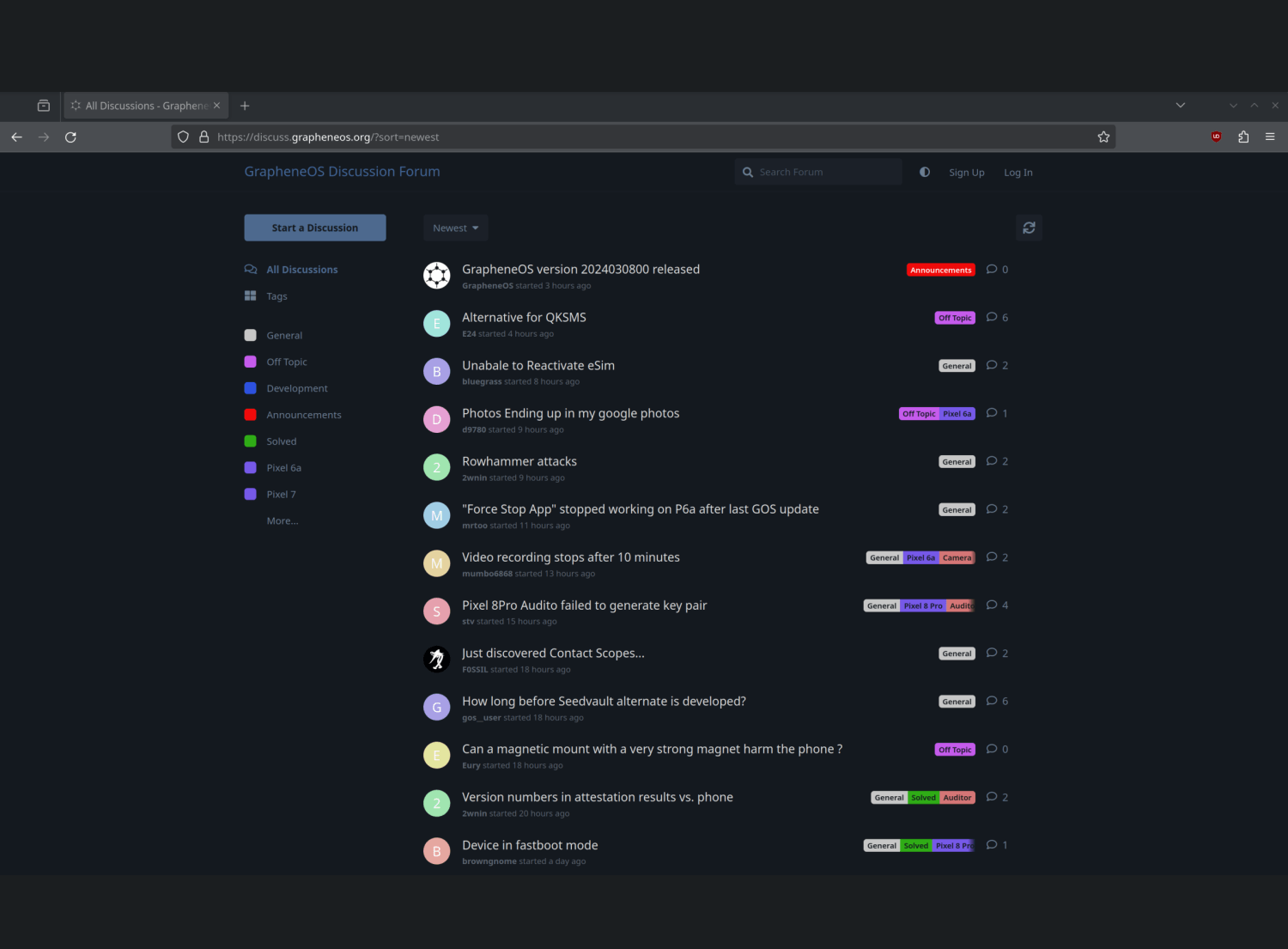
➤ Graphene OS Forum